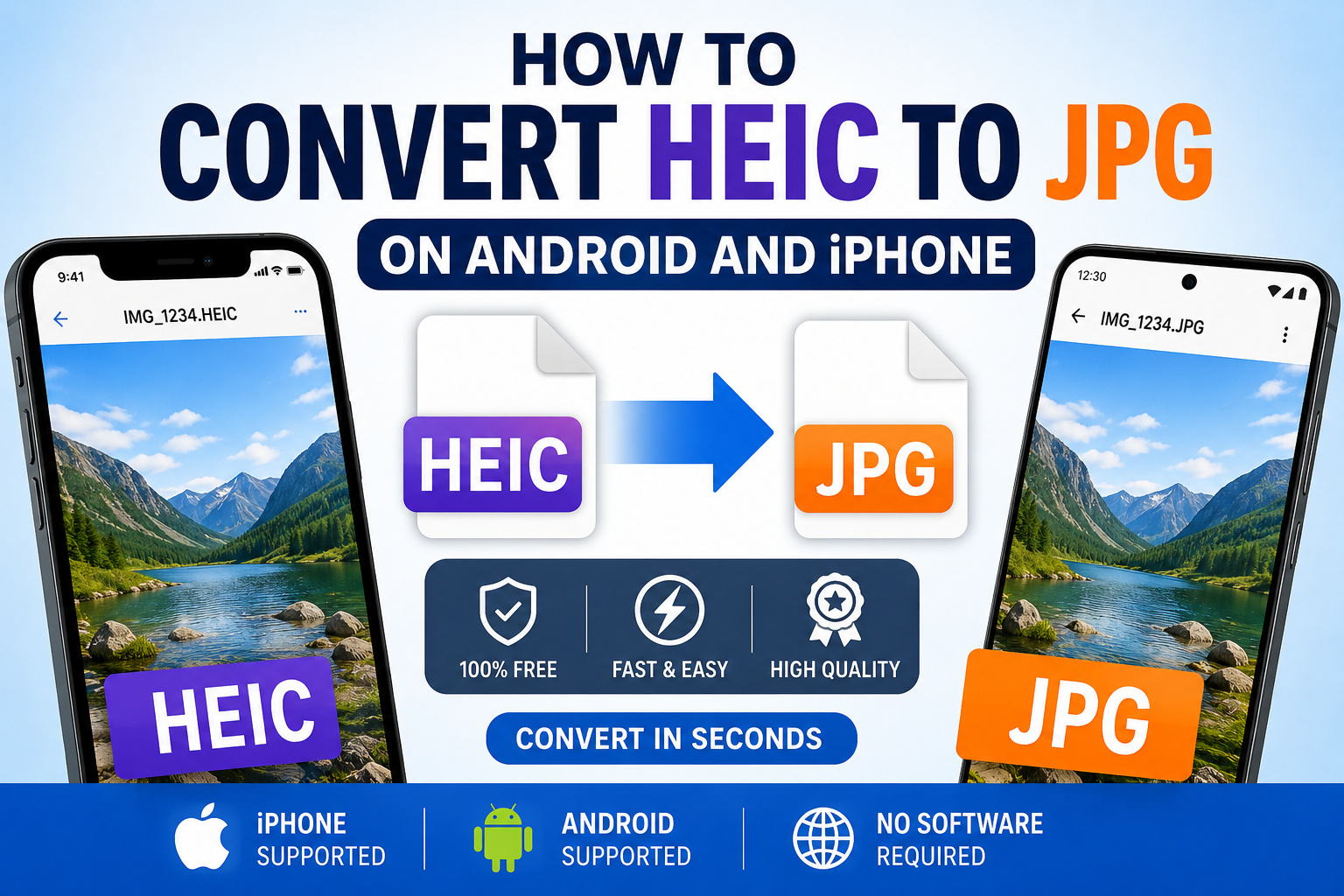
If you recently transferred photos from an iPhone or modern smartphone to your laptop, you may have noticed a strange file format called HEIC. Many users become confused because these files often fail to open properly on older devices, websites, or online forms. That is why thousands of people search daily for ways to convert HEIC to JPG on Android and iPhone.
The JPG format remains the most widely supported image format worldwide. Whether you are uploading images for job applications, websites, social media, or document forms, JPG files work almost everywhere.
In this guide, you will learn:
- What HEIC format is
- Why HEIC causes compatibility issues
- How to Convert HEIC to JPG on Android and iPhone
- Best free tools for conversion
- Tips to maintain image quality
- Common mistakes to avoid
What Is HEIC Format?
HEIC stands for High Efficiency Image Container. Apple introduced this format to save storage space while maintaining image quality.
HEIC files:
- Use less storage
- Maintain better quality
- Are common on iPhones
- Are not fully compatible everywhere
Although HEIC is modern and efficient, many websites and applications still require JPG images.
Why Convert HEIC to JPG on Android and iPhone?
The biggest reason is compatibility. Many platforms do not support HEIC uploads.
Users commonly face problems while:
- Uploading government forms
- Sharing images online
- Editing photos
- Using older laptops
- Printing images
Platforms like:
usually work better with JPG images.
That is why knowing how to convert HEIC to JPG on Android and iPhone is extremely useful.
Best Free Tool to Convert HEIC to JPG
One of the easiest options is:
1ClickConverter HEIC to JPG Tool
This online converter allows users to:
- Convert HEIC to JPG on Android and iPhone instantly
- Maintain image quality
- Use mobile or desktop
- Convert without software installation
- Download optimized JPG files quickly
The process takes only a few seconds.
How to Convert HEIC to JPG on Android
Step 1: Open the Converter Tool
Visit:
1ClickConverter
Open the HEIC conversion tool in your browser.
Step 2: Upload Your HEIC File
Choose the HEIC image from:
- iPhone gallery
- Android storage
- Laptop folders
The tool automatically detects the format.
Step 3: Start Conversion
Click the convert button. The system will process your file and convert it into JPG format.
Most conversions finish within seconds.
Step 4: Download JPG Image
After conversion:
- Download the JPG file
- Open it normally
- Upload or share it anywhere
The converted file works on almost all devices and websites.
Why JPG Is Still Popular
Even though HEIC is newer, JPG remains the most accepted format globally.
Advantages of JPG:
- Universal compatibility
- Smaller upload issues
- Easy sharing
- Better website support
- Faster uploads
That is why most online forms still request JPG or JPEG images.
How to Convert HEIC to JPG on iPhone
iPhone users can easily convert images using browser-based tools.
Simply:
- Open Safari browser
- Visit: 1ClickConverter
- Upload HEIC image
- Convert to JPG
- Download final image
No app installation is required.
How to Convert HEIC to JPG on Android
Some Android phones also support HEIC images.
Android users can:
- Open Chrome browser
- Upload HEIC images
- Convert instantly online
- Save JPG images to gallery
This method works on most Android devices.
Tips to Maintain Image Quality During Conversion
Use Original Images
Avoid screenshots or forwarded files.
Avoid Multiple Conversions
Repeated conversions can reduce quality.
Use Trusted Tools
Reliable converters preserve image clarity better.
Keep Stable Internet Connection
Interrupted uploads may fail during conversion.
Common Problems With HEIC Files
File Not Opening
Older Windows systems may not support HEIC.
Upload Errors
Many online forms reject HEIC images.
Editing Issues
Some editing software cannot process HEIC files properly.
Sharing Problems
Friends or offices using older devices may fail to open HEIC images.
Converting to JPG solves almost all these issues.
Other Useful Image Tools
Along with HEIC conversion, users often need:
- Image compression
- Passport photo resizing
- JPG to PNG conversion
- PDF conversion
You can explore multiple free tools on:
1ClickConverter
Best Uses for JPG Images
After converting HEIC to JPG, you can easily:
- Upload government forms
- Share on WhatsApp
- Post on social media
- Print photographs
- Attach in emails
- Use on websites
JPG is accepted almost everywhere.
Mobile-Friendly Online Conversion
Modern online converters are fully optimized for:
- Android phones
- iPhones
- Tablets
- Desktop browsers
This makes HEIC conversion simple for students and professionals alike.
Frequently Asked Questions
Is HEIC better than JPG?
HEIC saves storage space and maintains quality better, but JPG has better compatibility.
Can I Convert HEIC to JPG on Android and iPhone without software?
Yes. Online tools like:
1ClickConverter
allow instant browser-based conversion.
Will image quality decrease after conversion?
Good converters maintain excellent quality during conversion.
Is HEIC supported by all websites?
No. Many websites still require JPG or PNG formats.
Final Words
HEIC images are becoming common due to modern smartphones, especially iPhones. However, compatibility problems still make JPG the preferred format for uploads, sharing, and online applications.
Whether you are uploading images to PPSC, FPSC, or FIA Recruitment, understanding how to convert HEIC to JPG on Android and iPhone can save time and prevent upload errors.
For fast and simple conversion, try:
1ClickConverter HEIC Tools
It is free, beginner-friendly, mobile-compatible, and perfect for daily image conversion needs.